AnythingLLM AnythingLLM
The Ultimate AI Document Assistant 終極 AI 文檔助手
Chat with your documents using local LLM models - completely private and free. 使用本地端 LLM 與文檔對話 - 完全私密且免費。
What is AnythingLLM? AnythingLLM 是什麼?
AnythingLLM is a desktop application that turns any document, resource, or piece of content into context that any LLM can use during chatting. AnythingLLM 是一個桌面應用程式,可將任何文檔、資源或內容轉換為任何 LLM 可在聊天時使用的上下文。
- Chat with Documents (PDF, DOCX, TXT, etc.)與文檔對話(PDF、DOCX、TXT 等)
- Built-in RAG (Retrieval-Augmented Generation)內建 RAG(檢索增強生成)
- Works 100% Offline with Local LLM支援 100% 離線使用本地端 LLM
- Multi-User Support多用戶支援
- Agent Support (Browse web, run code, etc.)Agent 支援(瀏覽網頁、運行程式碼等)
Key Features 主要功能
Upload your documents and chat with AI that has full context of your files.上傳文檔並與完全了解您文件內容的 AI 對話。
Works with Ollama, LM Studio, OpenAI, Anthropic, and many more.支援 Ollama、LM Studio、OpenAI、Anthropic 等多種 LLM。
Built-in LanceDB or connect to Pinecone, Chroma, Weaviate, etc.內建 LanceDB 或連接到 Pinecone、Chroma、Weaviate 等。
AI agents can browse the web, save files, run code, and more.AI Agent 可以瀏覽網頁、保存文件、運行程式碼等。
Why AnythingLLM? 為什麼選擇 AnythingLLM?
- Easy to Use: Simple desktop app - no coding required. 易於使用:簡單的桌面應用程式 - 無需編程。
- 100% Private: All data stays on your computer. 100% 私密:所有數據保留在您的電腦上。
- Free & Open Source: No API costs when using local LLM. 免費且開源:使用本地端 LLM 時無 API 費用。
- Works Offline: No internet required with local models. 離線工作:使用本地模型時無需網路。
Installation - Desktop App (Recommended) 安裝教學 - 桌面應用程式(推薦)
The easiest way to use AnythingLLM is to download the desktop application. 使用 AnythingLLM 最簡單的方式是下載桌面應用程式。
Visit the official website and download for Windows, Mac, or Linux.訪問官方網站並下載 Windows、Mac 或 Linux 版本。
Run the installer and launch the application. First-time setup is quick and simple.運行安裝程式並啟動應用程式。首次設置快速簡單。
Choose your LLM provider (Ollama, LM Studio, or cloud providers).選擇您的 LLM 供應商(Ollama、LM Studio 或雲端供應商)。
Upload documents and start chatting with AI that understands your content.上傳文檔並開始與理解您內容的 AI 對話。
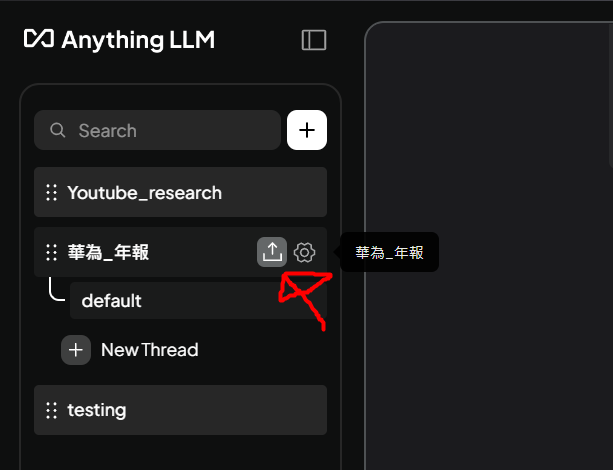
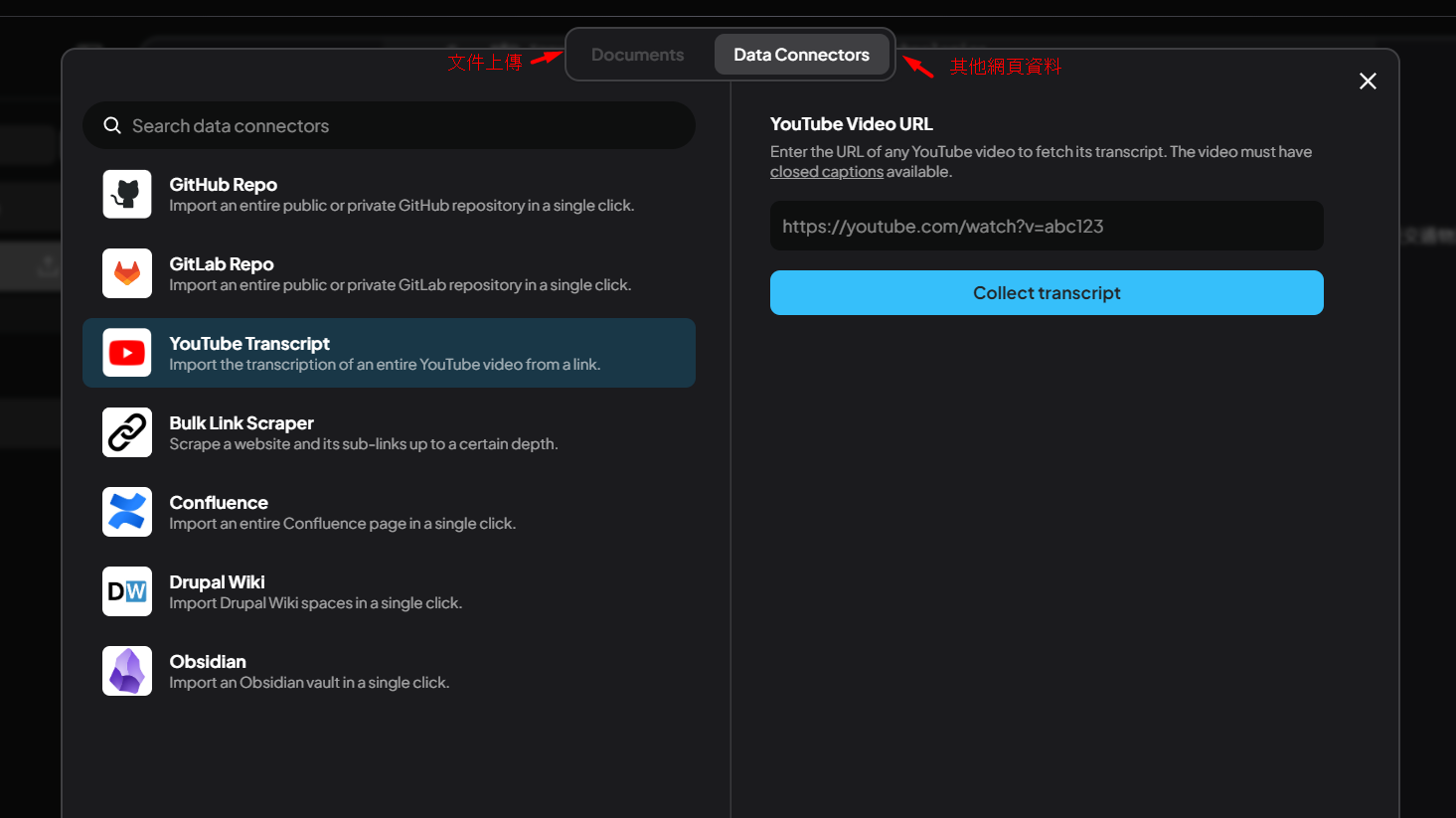
Data Connectors: Import from multiple sources 數據連接器:從多個來源匯入
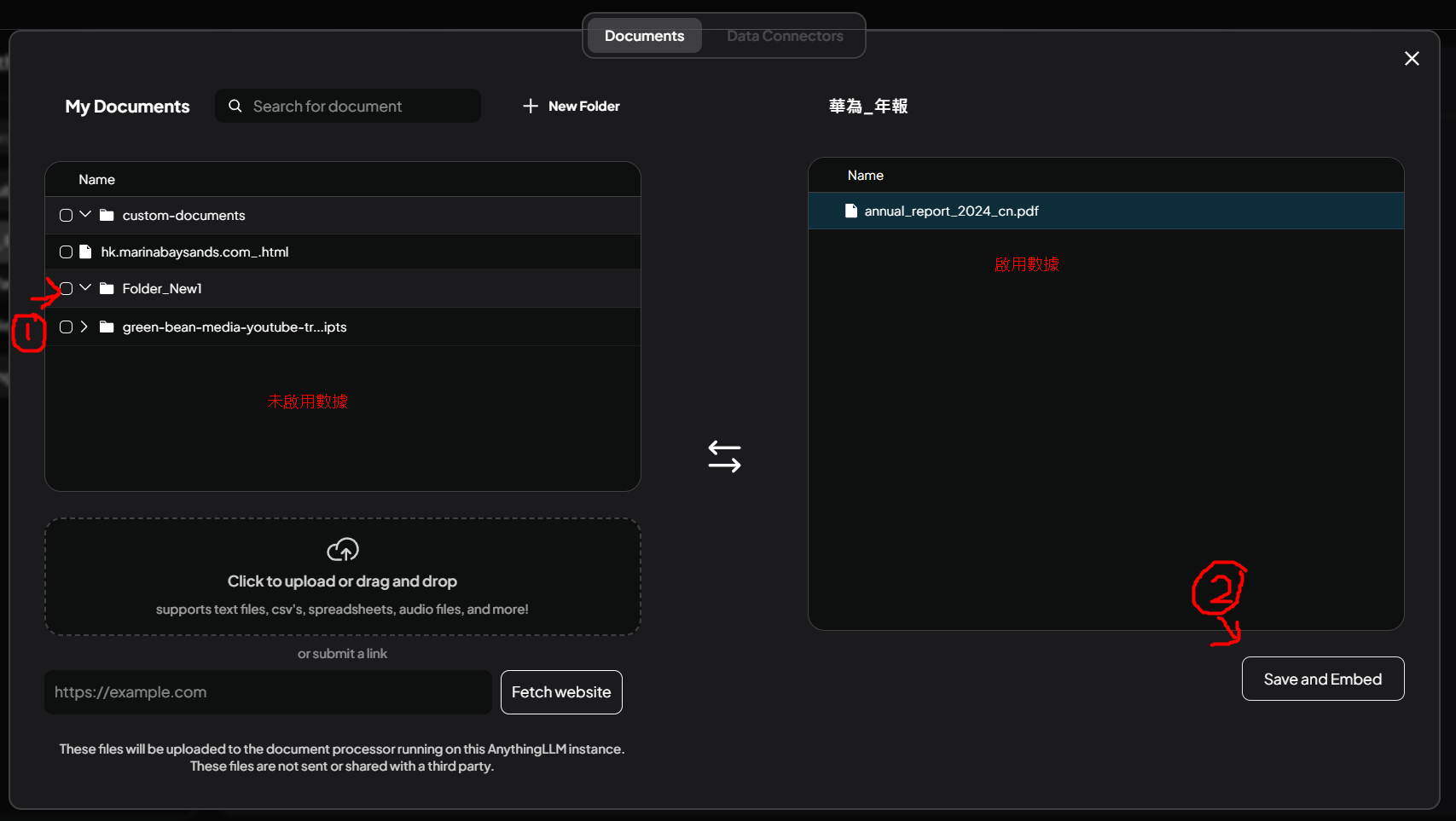
Workspace Management: Left - Not enabled data, Right - Ready/Enabled data 數據RAG 工作區管理:左邊 - 未啟用資料,右邊 - 準備/已啟用數據
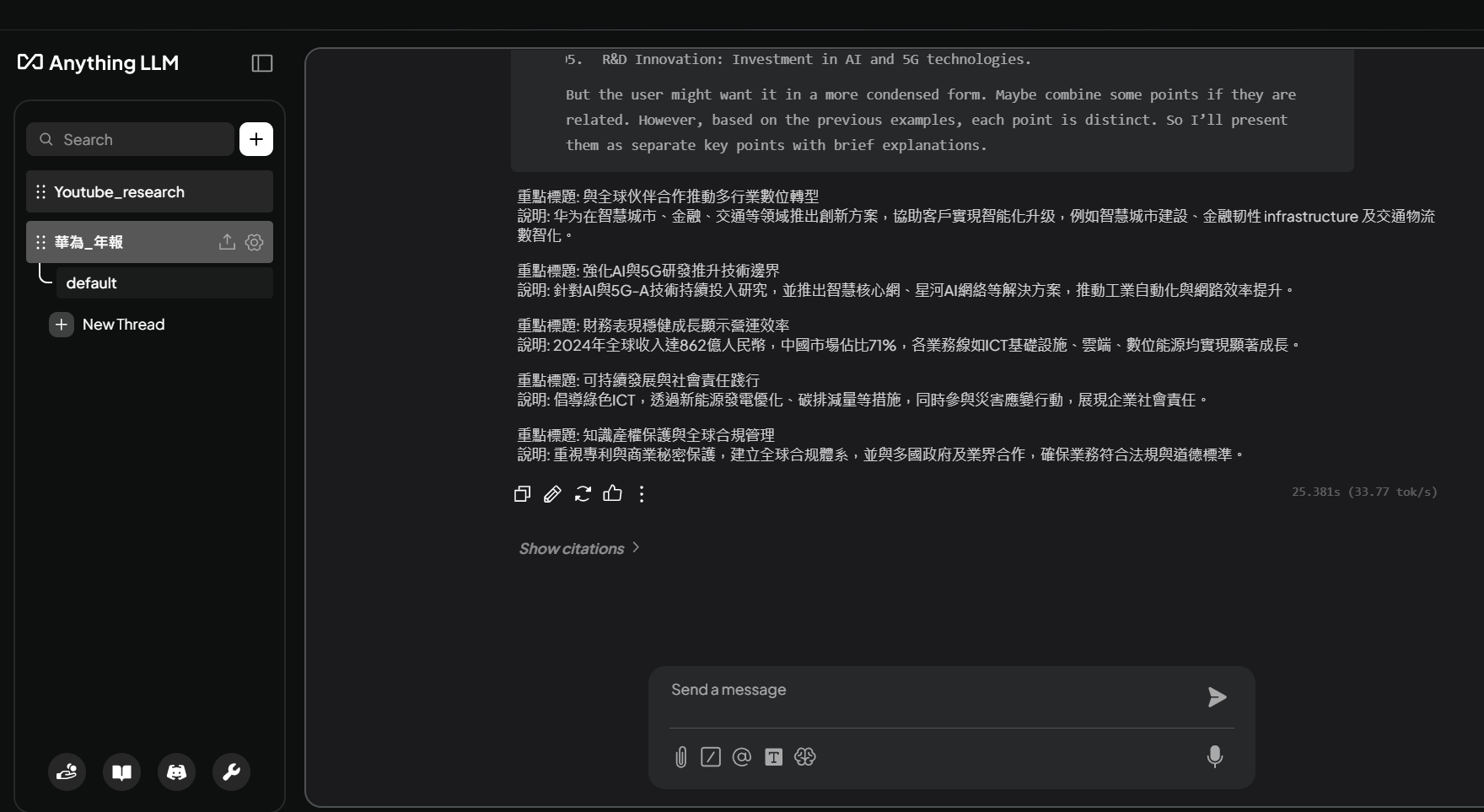
Chat Interface Preview: Start chatting with your documents 聊天介面預覽:開始與文檔對話
Connect to Local LLM (Ollama / LM Studio) 連接本地端 LLM(Ollama / LM Studio)
Option 1: Using Ollama 選項 1:使用 Ollama
Make sure Ollama is running on your computer確保 Ollama 在您的電腦上運行
In AnythingLLM Settings, select "Ollama" as LLM Provider在 AnythingLLM 設定中,選擇「Ollama」作為 LLM 供應商
Set Base URL to: http://localhost:11434設定 Base URL 為:http://localhost:11434
Select your Ollama model from the dropdown從下拉選單中選擇您的 Ollama 模型
Option 2: Using LM Studio 選項 2:使用 LM Studio
Start LM Studio and load a model啟動 LM Studio 並載入模型
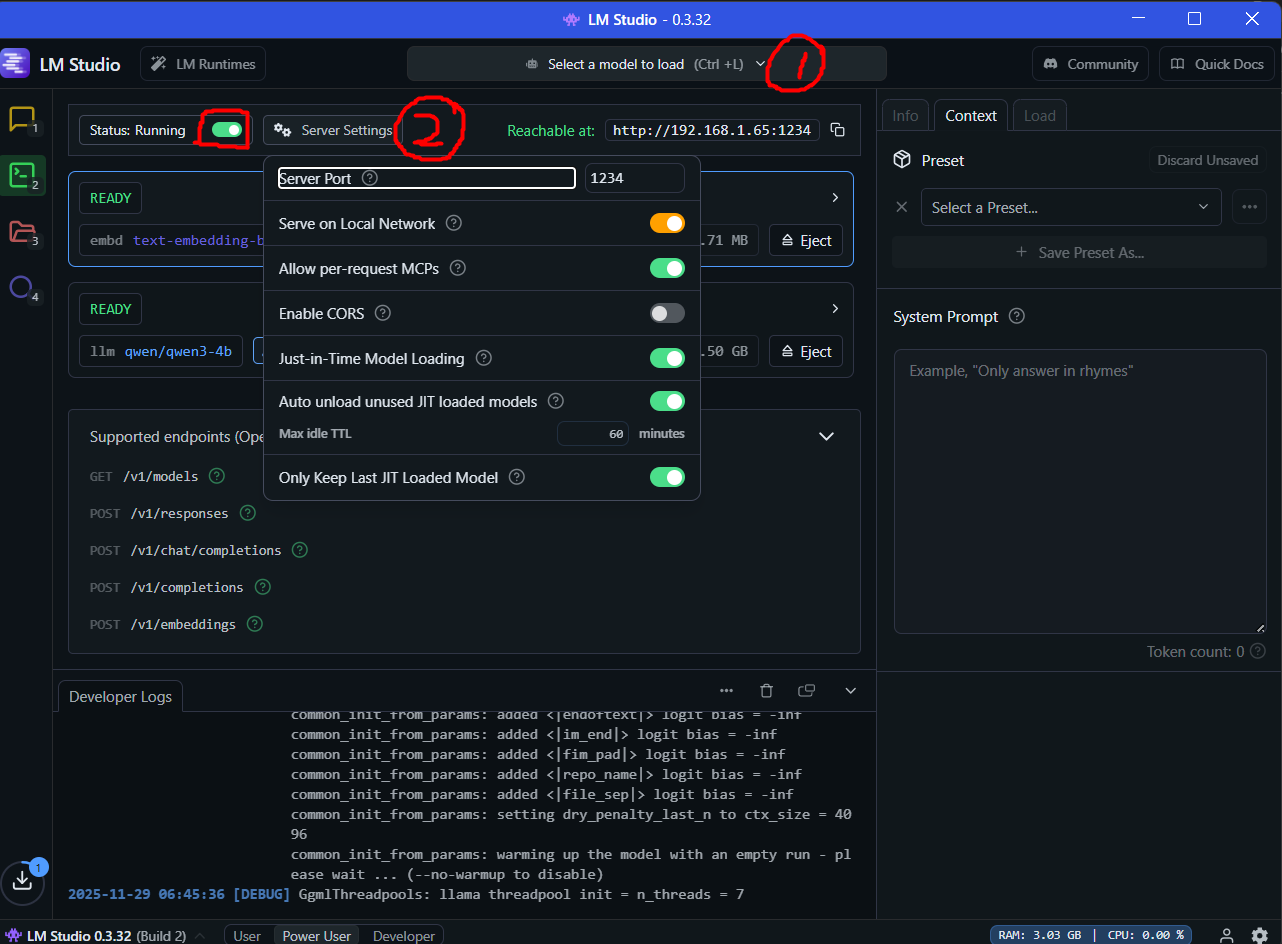
Enable the local server in LM Studio在 LM Studio 中啟用本地伺服器
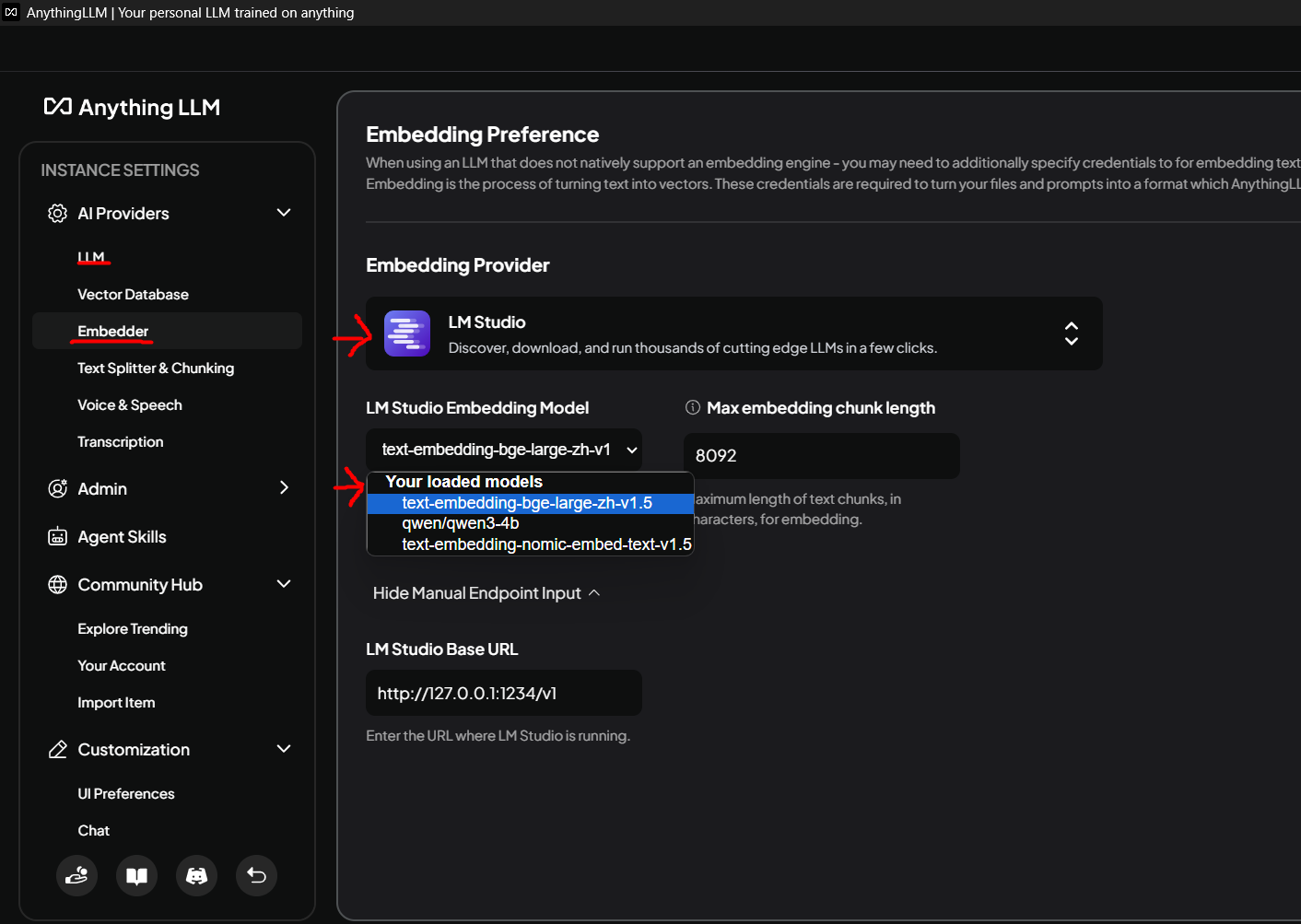
In AnythingLLM, select "Generic OpenAI" as provider在 AnythingLLM 中,選擇「Generic OpenAI」作為供應商
Set Base URL to: http://localhost:1234/v1設定 Base URL 為:http://localhost:1234/v1
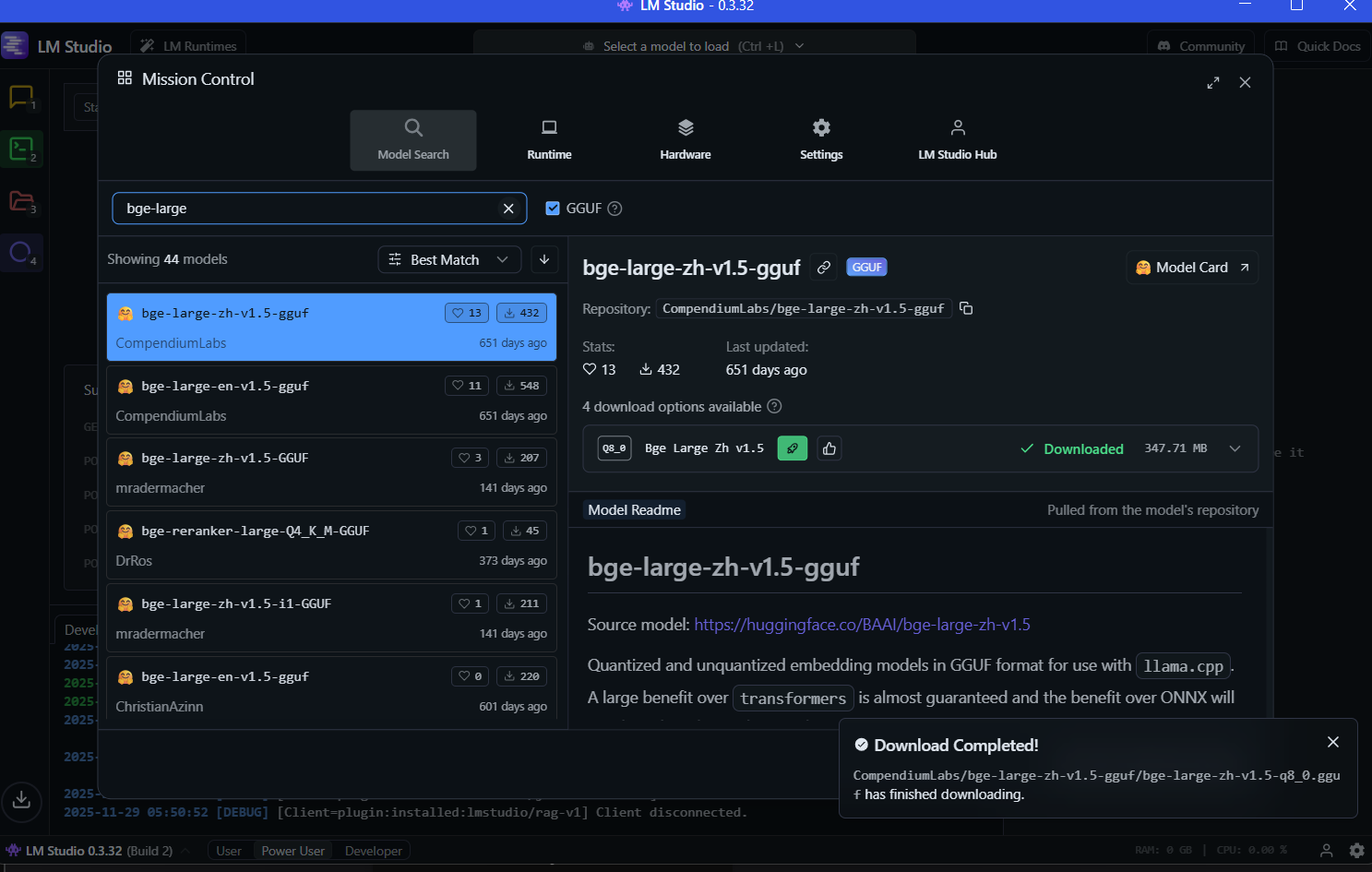
Step-by-Step Visual Guide - LM Studio: 逐步視覺化教學 - LM Studio:
1. Download and load your model in LM Studio 1. 在 LM Studio 中下載並載入您的模型
2. Enable the local server in LM Studio (Status: Running) 2. 在 LM Studio 中啟用本地伺服器(狀態:運行中)
3. Configure embedding settings in AnythingLLM 3. 在 AnythingLLM 中配置嵌入設定
Use Cases 實際應用例子
- Research Assistant: Upload research papers and ask questions about them 研究助手:上傳研究論文並詢問相關問題
- Document Analysis: Analyze contracts, reports, or any documents 文檔分析:分析合約、報告或任何文檔
- Knowledge Base: Build a private knowledge base from your documents 知識庫:從您的文檔建立私人知識庫
- Code Helper: Upload code documentation and get instant answers 程式碼助手:上傳程式碼文檔並獲得即時答案
Tips for Best Results 獲得最佳效果的提示
- Choose the Right Model: Larger models (7B+) work better for complex documents 選擇正確的模型:較大的模型(7B+)在處理複雜文檔時效果更好
- Organize Workspaces: Create separate workspaces for different topics 組織工作區:為不同主題創建獨立的工作區
- Clean Documents: Well-formatted documents give better results 清理文檔:格式良好的文檔能提供更好的結果
- Adjust Settings: Tweak chunk size and overlap for optimal performance 調整設定:調整區塊大小和重疊以獲得最佳性能